So far in this course we have only made lists that hold a set, or fixed, number of values.
For example:
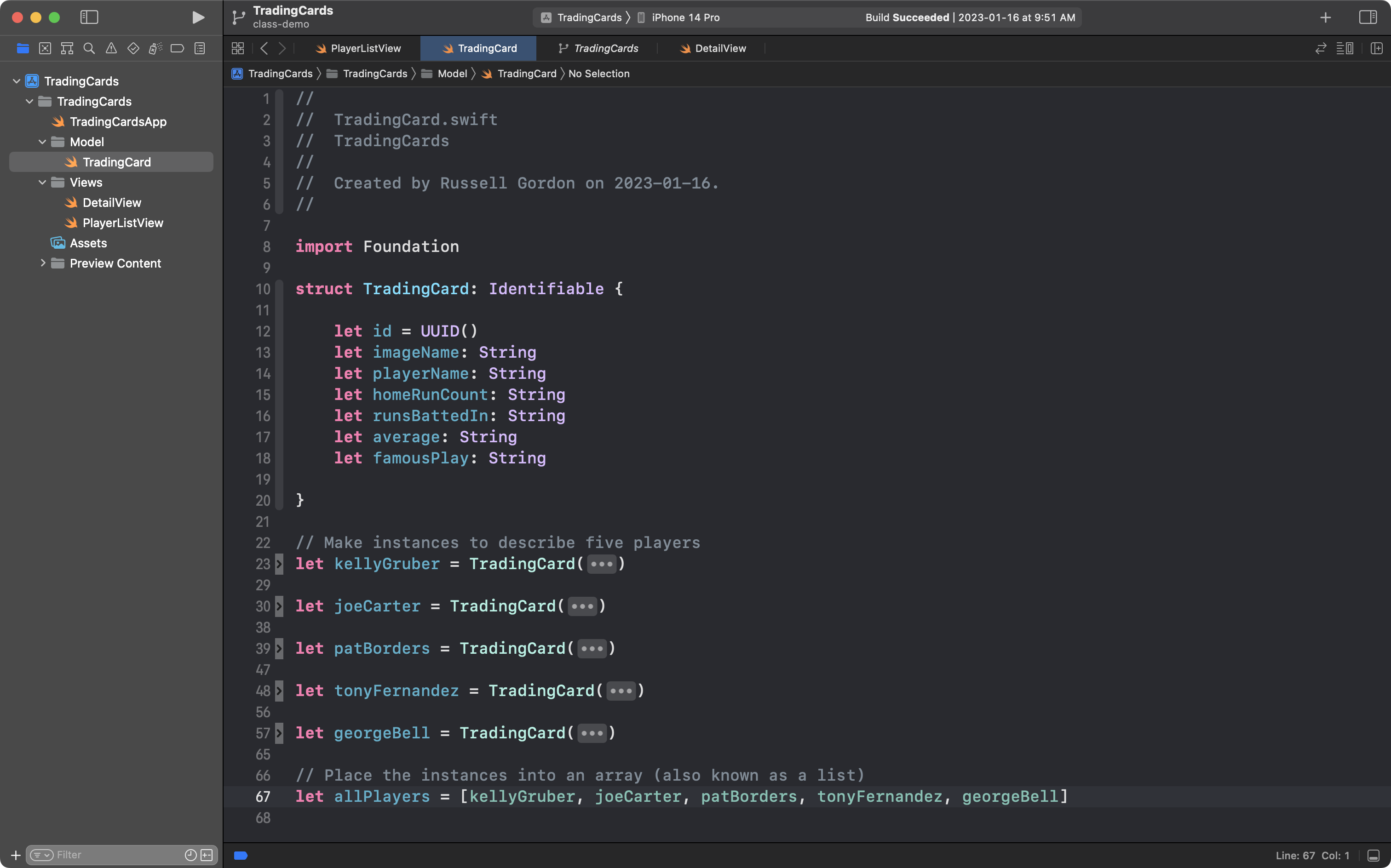
In the screenshot above, on line 67, a list (also called an array) named allPlayers was created and holds five elements, with indices from 0 to 4:
| Index | Element |
|---|---|
| 0 | kellyGruber |
| 1 | joeCarter |
| 2 | patBorders |
| 3 | tonyFernandez |
| 4 | georgeBell |
However, a great deal of the utility of using a list comes from its flexibility: the number of elements can be increased (or decreased) while our program runs.
Storing a history of results
Imagine you wish to find the horizontal intercepts of a quadratic relation:
In this case, the relation is relatively straightforward to factor to determine the intercepts:
and
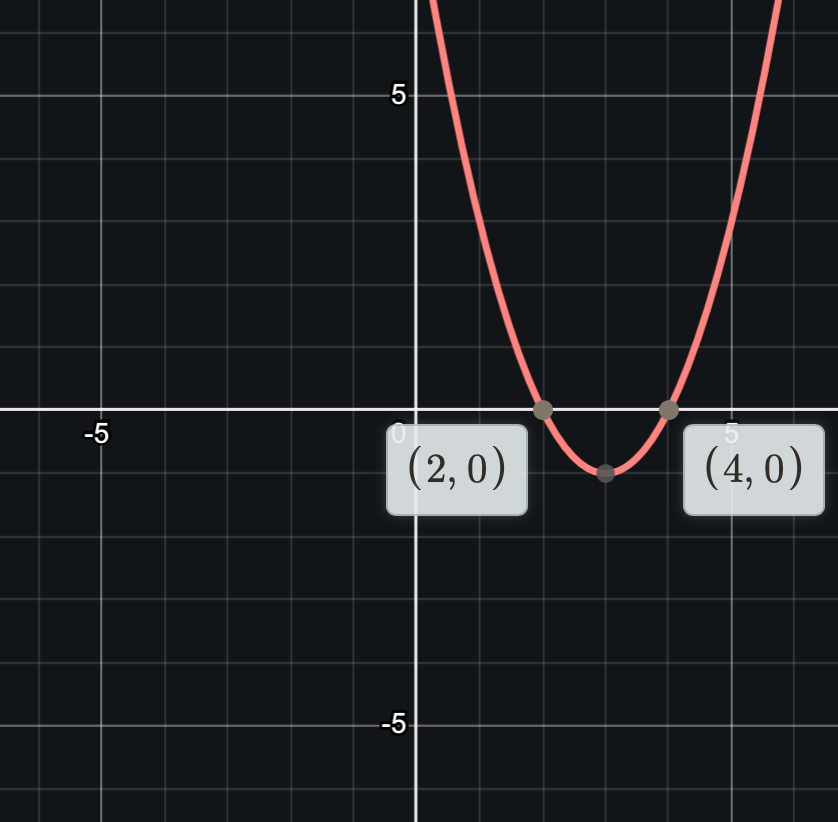
We could also graph the relation and determine the intercepts that way:
However, a relation such as:
… cannot be factored over the integers.
Rather than graph, you might reach for your calculator, and use the Quadratic Formula:
This is a reasonable approach.
Standard form for a quadratic relation is:
So, we know that for the relation:
The co-efficients are:
We can then substitute and evaluate:
However, applying the Quadratic Formula is somewhat tedious and error-prone.
Perhaps you have gotten past the part of high-school math where it is important that you practice how to apply the Quadratic Formula, and instead, you just want to know what the horizontal intercepts are to solve a bigger problem.
Or perhaps you want to check your answers after having manually applied the Quadratic Formula.
In these cases, an app that, given the , , and values as input, used the Quadratic Formula to provide output:
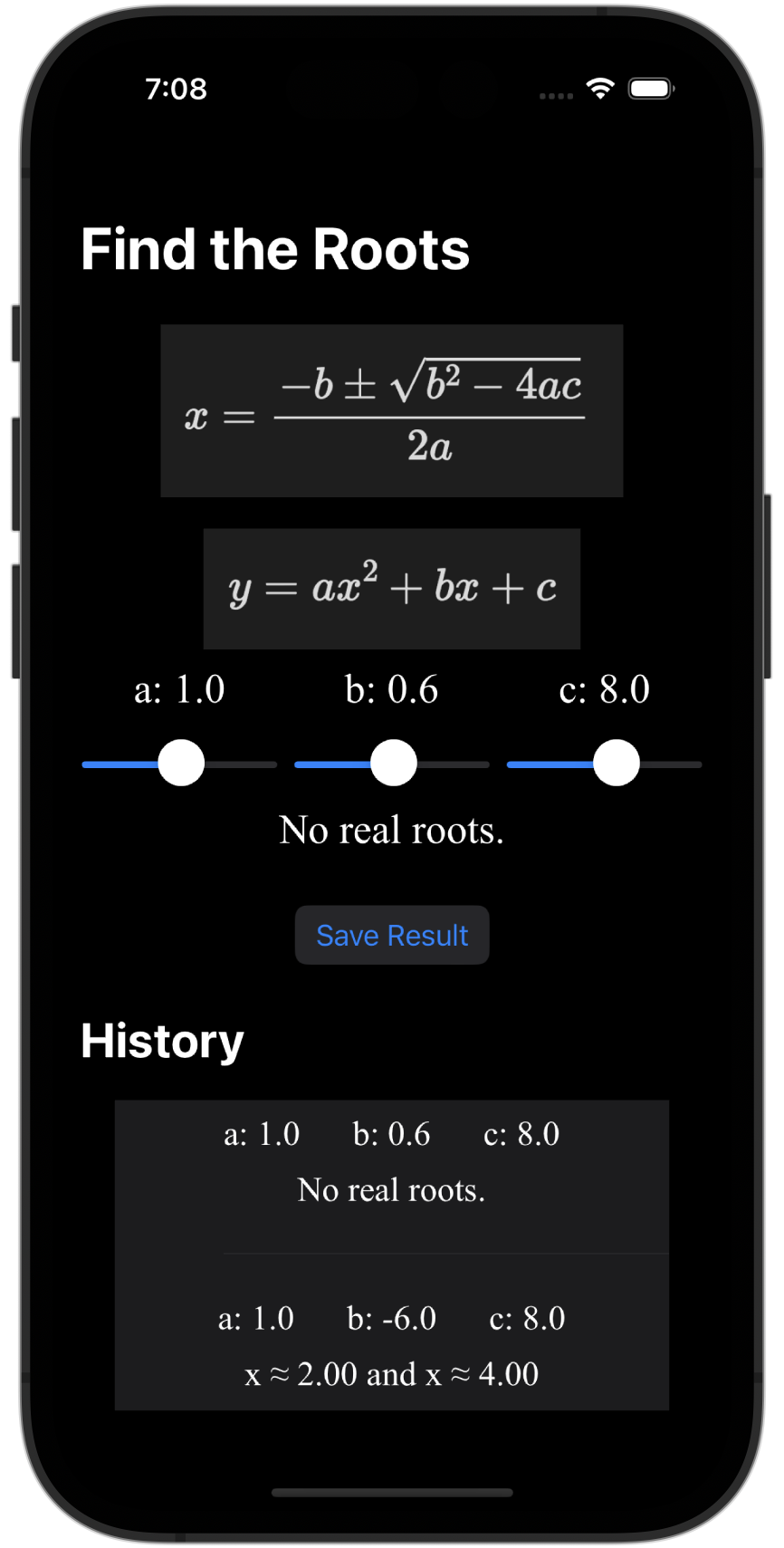
… might be very useful indeed.
More than that, wouldn’t it be nice to see a history of prior calculations you had made?
That’s where lists – and their ability to store more and more elements while an app runs – can be very useful.
Let’s build this app together now. 🚀
Create a new project
Create a new iOS project in Xcode named FindTheRoots.
TIP
Remember to create a remote after making your project.
Remember, when starting a new app, it’s good practice to:
- right-click or two-finger tap on the top-most blue folder and choose Convert to Group
- set up a group named Views to hold all the structures that describe the user interface within your app
- to rename
ContentViewto a more thoughtful name – the new name should be meaningful and convey the purpose of the structure – let’s useRootsCalculatorView
TIP
To easily rename a structure, right-click or two finger tap on it’s name and choose Refactor > Rename.
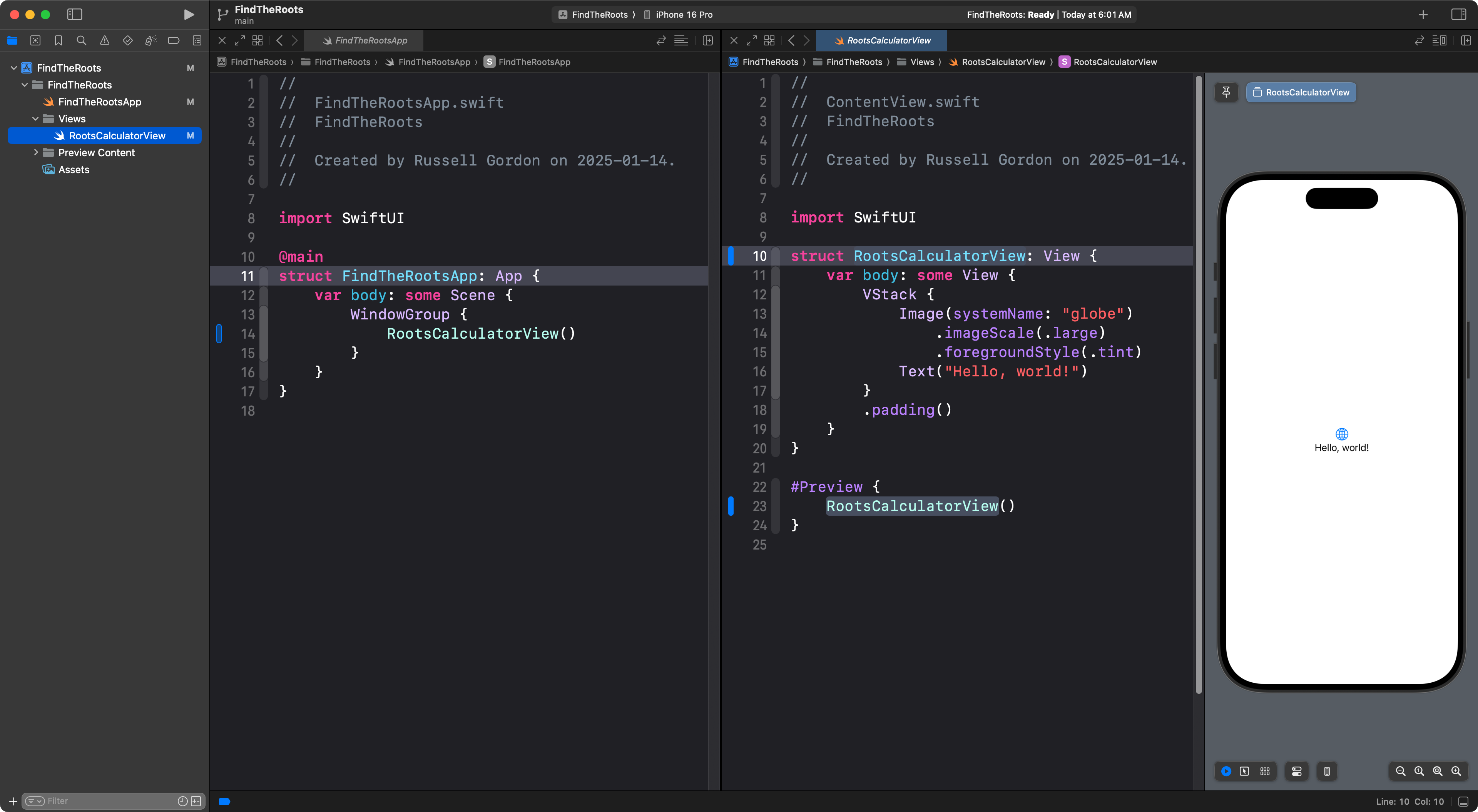
Your project will look something like this after all this setup:
Now is a good time to commit and push your work with this message:
Finished initial project organization.
Building the static interface
Now, use your existing knowledge of layout with SwiftUI to build out this interface, as shown:
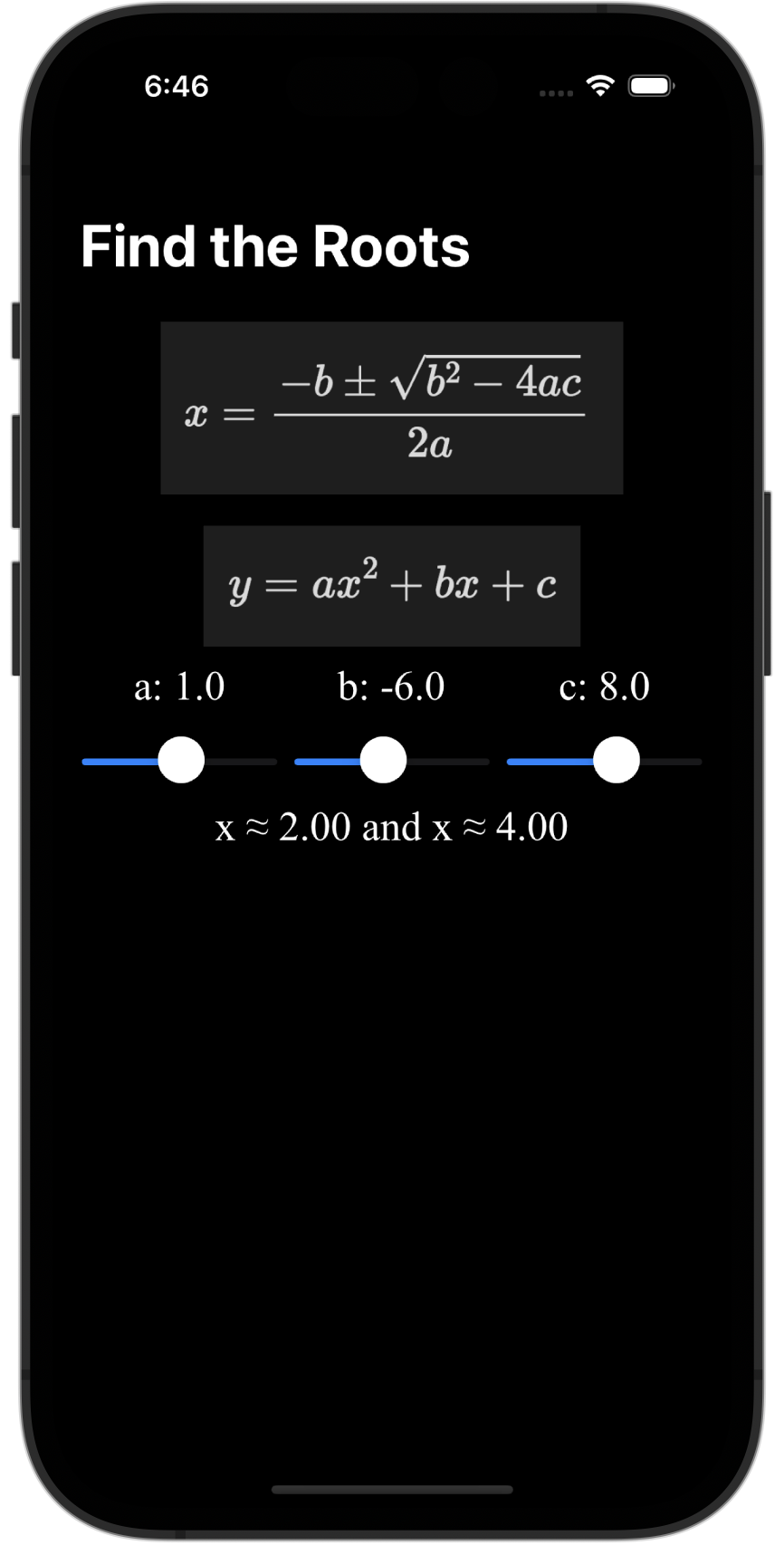
NOTE
The app does not need to work just yet. For example, the output showing would just be a static
Textview right now. The sliders and the text views that show each slider’s current value should be interactive, though – this means that when you drag a slider, the value that is shown updates.
The view modifier required to change the font is:
  .font(Font.custom("Times New Roman",
                     size: 24.0,
                     relativeTo: .body))
To get the Quadratic Formula and the standard form equation into your interface, take screenshots of those expressions from earlier in this tutorial, then move those screenshots into your Assets folder in Xcode.
To get the ≈ sign, use Control-Command-Spacebar and search for “almost equal to” in the Emoji and Symbols picker that appears:
.png)
To round off values to one decimal place, use code something like this:
// A value that will be stored as a Double
let someValue = 3.14159

// Create a string with this value rounded to one decimal place
let someFormattedValue = someValue.formatted(.number.precision(.fractionLength(1)))

// someFormattedValue will contain 3.1
TIP
The app does not need to be in dark mode – I was just writing this tutorial at night. ☺️
– Mr. Gordon
Once you have finished creating the static interface in RootsCalculatorView, be sure to commit and push your work with this message:
Finished making the static interface.
Calculate the result
Our input values a, b, and c are of type Double.
The output value, while it shows numeric information, will in fact be a String.
The purpose of this lesson is not really to review the mathematics of this app, but some explanation will likely be helpful.
You are likely aware that a quadratic relation can be positioned in only a few ways with regard to the horizontal axis:
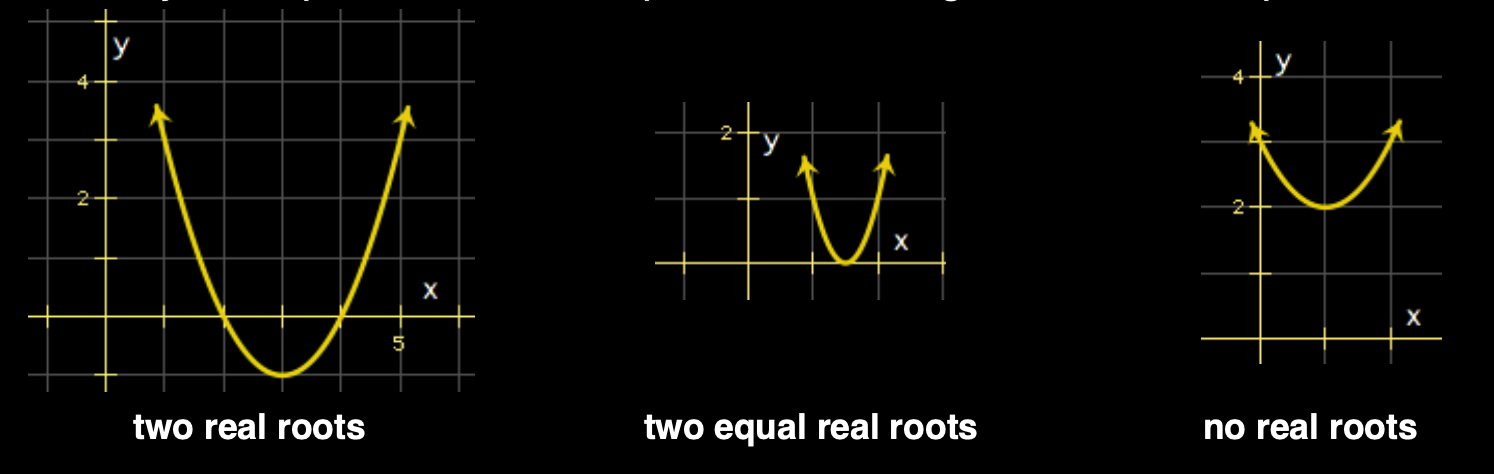
That is, a quadratic relation can:
- cross the horizontal axis twice (so there are two roots or solutions)
- touch the horizontal axis at its vertex (two equal roots or solutions)
- not touch the horizontal axis at all (no roots)
When the quadratic relation does not touch the horizontal axis, the discriminant:
… will be negative, or less than zero.
The discriminant is the part of the Quadratic Formula that is under the square root symbol:
That is, the discriminant is:
We can use this fact to determine when a given quadratic relation does not cross the horizontal axis. When this occurs, we will return an appropriate message. Otherwise, we will return the solutions – where the quadratic touches the horizontal axis.
This will be done by creating a computed property that returns a data type of String.
Here is the logic – add this computed property to your app now:
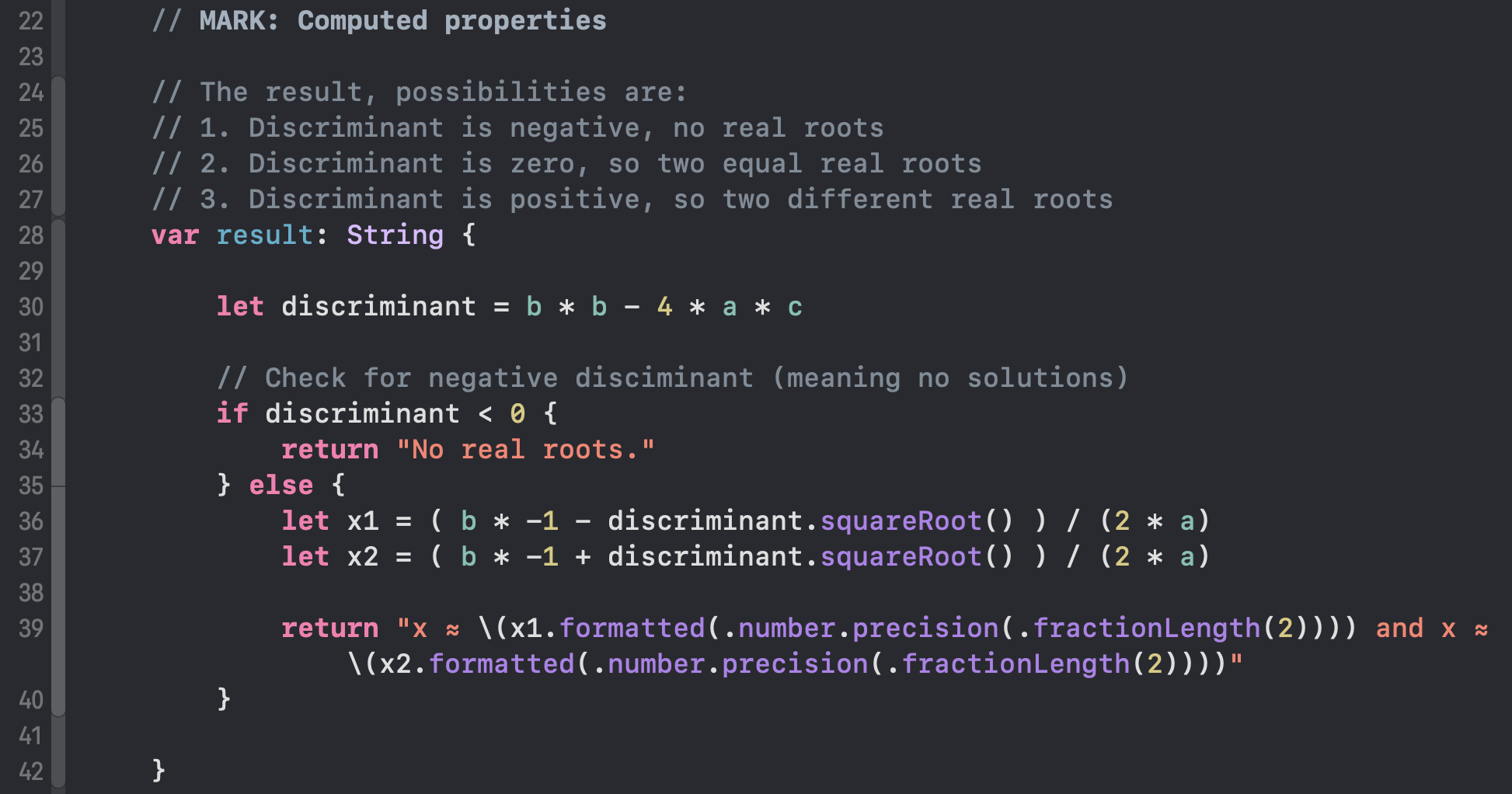
Note that this logic makes use of a selection statement.
A selection statement allows code to be run only under certain conditions.
In this case, the type of selection statement we are using is an if statement.
If you’d like to understand more about how selection statements work, please review this summary.
Now use the computed property to display live, or interactive, output from your app:
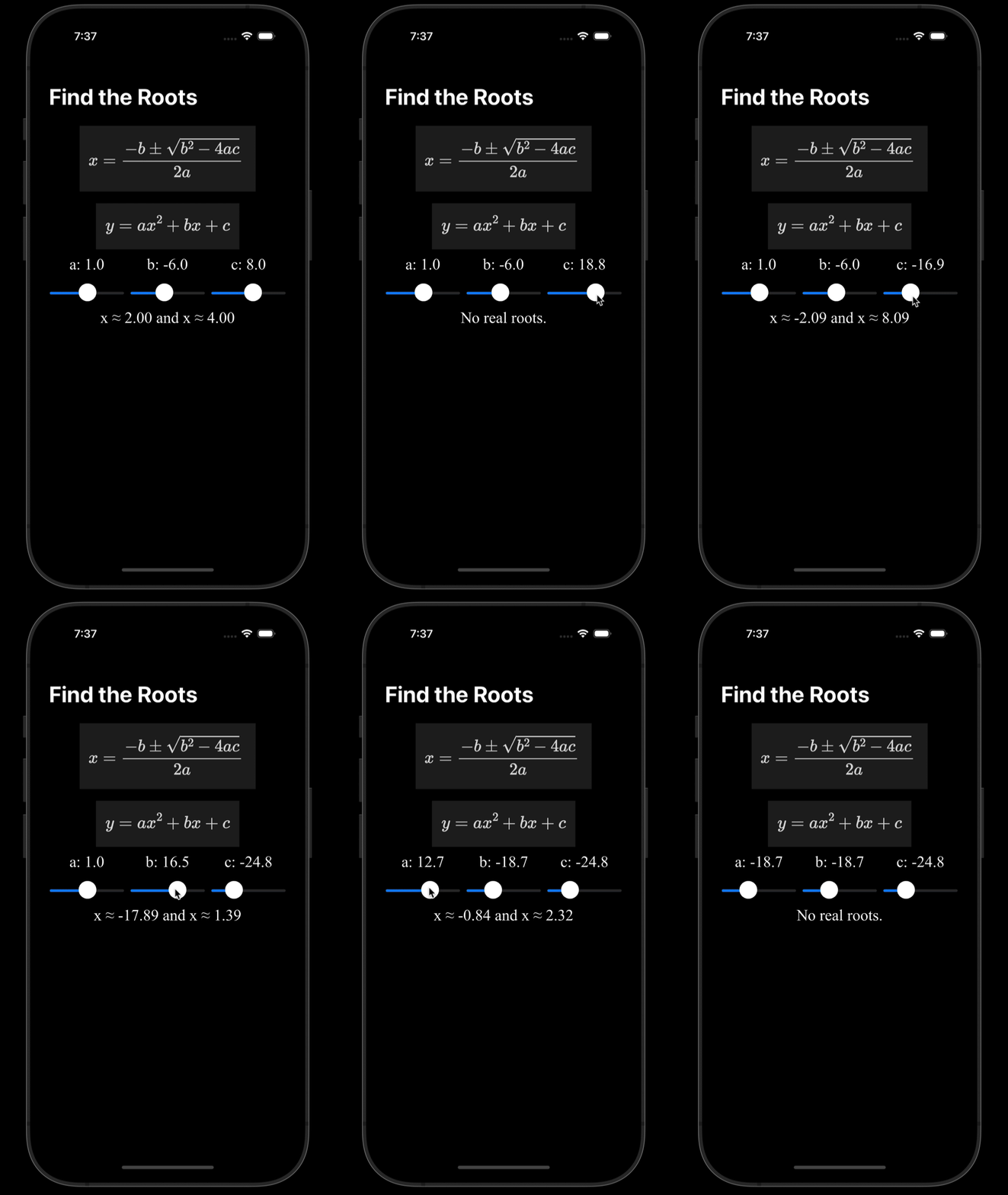
Save a history of results
We’ve now built a fairly useful app.
However, when working on many problems that involve the Quadratic Formula, it might be nice to keep a history of prior results:
Now that you have an initial understanding of lists (also known as arrays) you might be surprised to learn how straightforward this is to do.
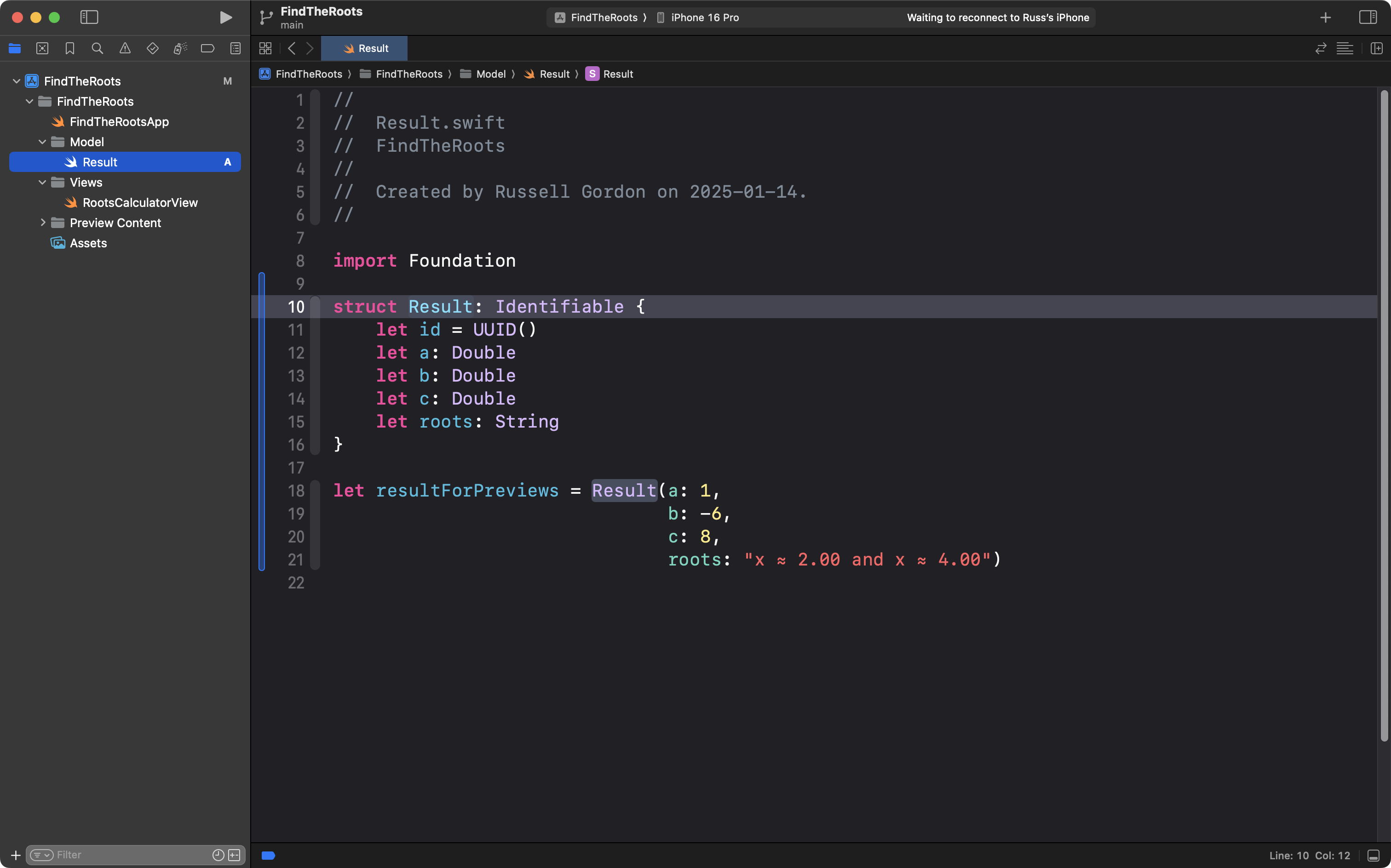
Create a structure to describe data
First, we need a structure that accurately describes the inputs and output of each calculation the user wants to save.
Add a file named Result.swift to a group named Model within your project.
Then create the structure shown below, including one instance of the structure as shown on lines 18 to 21:
Create a helper view
Since the app will show a list of prior results, all formatted the same way, we should make use of a helper view, or a subview, to display those results.
In the Views group of your project, create a new SwiftUI view named ResultView.
Here is the basic structure of that helper view:
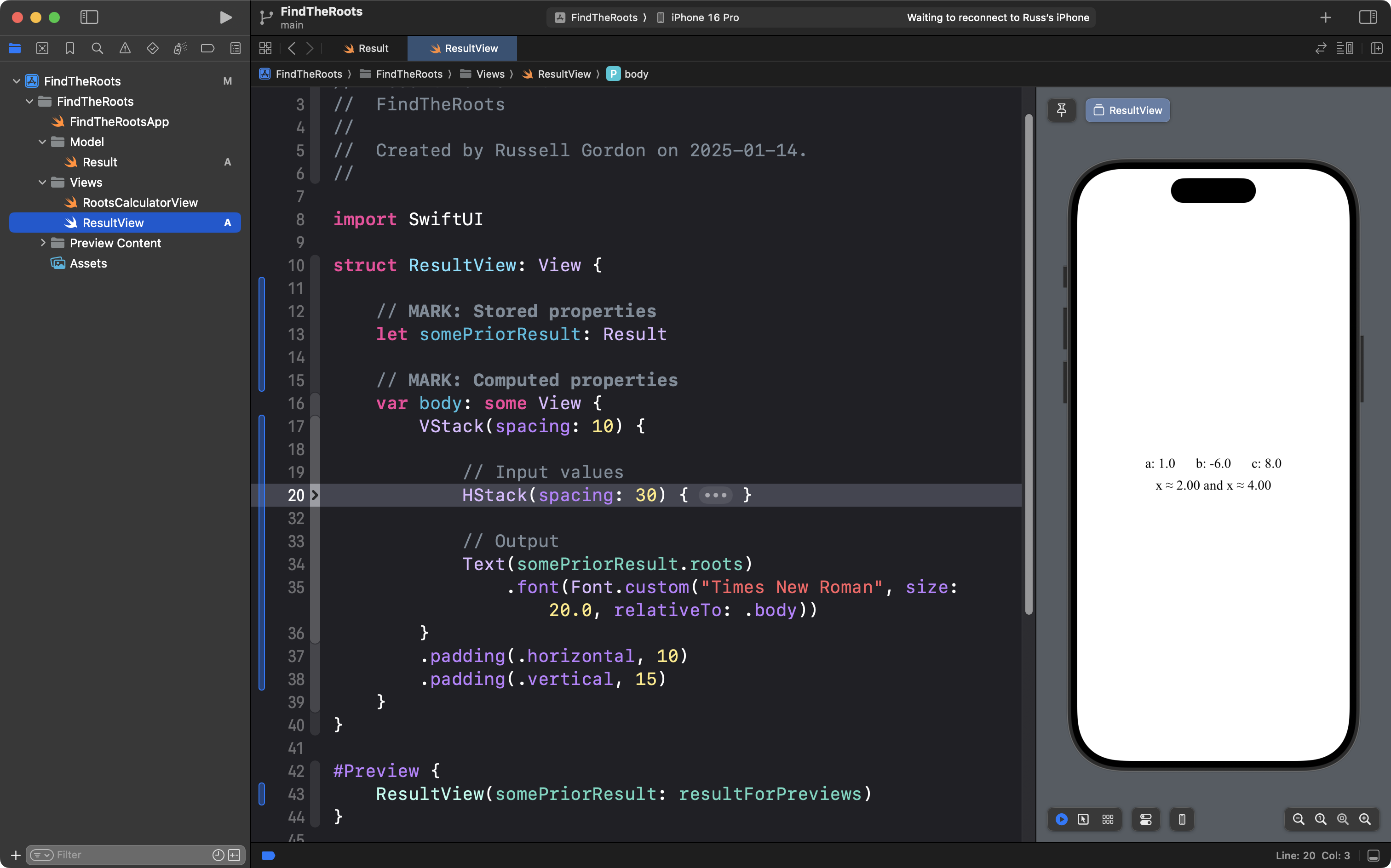
Note that the part of the user interface that shows the a, b, and c values is deliberately collapsed; completing this part of the interface is an exercise for you to do – draw upon your existing knowledge of layout with SwiftUI.
Note that this helper view accepts an instance of the Result type on line 13.
The stored property is called somePriorResult.
In the preview structure, on line 43, we create an instance of ResultView and for the somePriorResult parameter, we provide the argument of resultForPreviews, which was an instance of the Result structure that we created earlier.
Create an array to store prior results
Back in RootsCalculatorView, we need to create a stored property that will keep track of all the prior results the user wants to save.
This stored property will be a list. Initially, this list of results will be empty.
Here is the code required to create the empty list:
    // List of prior results
    @State var priorResults: [Result] = []
As you know, square brackets are the syntax used to mark the start and end of a list.
Here is where that code should be placed within RootsCalculatorView – see line 20:
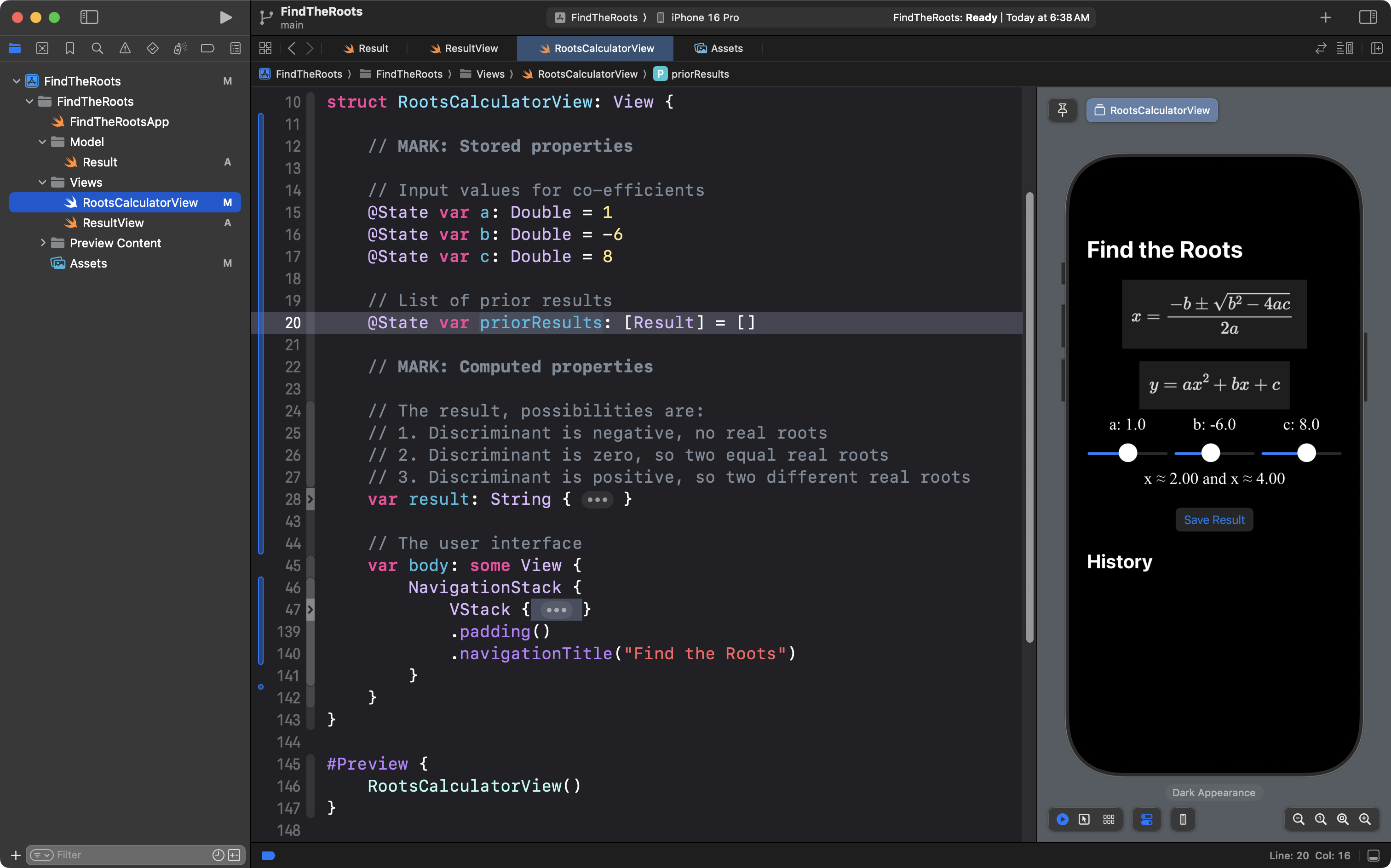
Since the stored property is marked with the @State property wrapper, when the array changes as the app is run, the user interface will be updated by SwiftUI.
Allow the user to save a result
We next need a way to let the user save a result for future reference.
This involves a Button structure.
The Button structure in SwiftUI has two parameters that accept blocks of code (closures) as arguments:
action- what code should be run when the button is pressed
label- what text should be shown on the button
Add the following code below the Text view that shows your output:
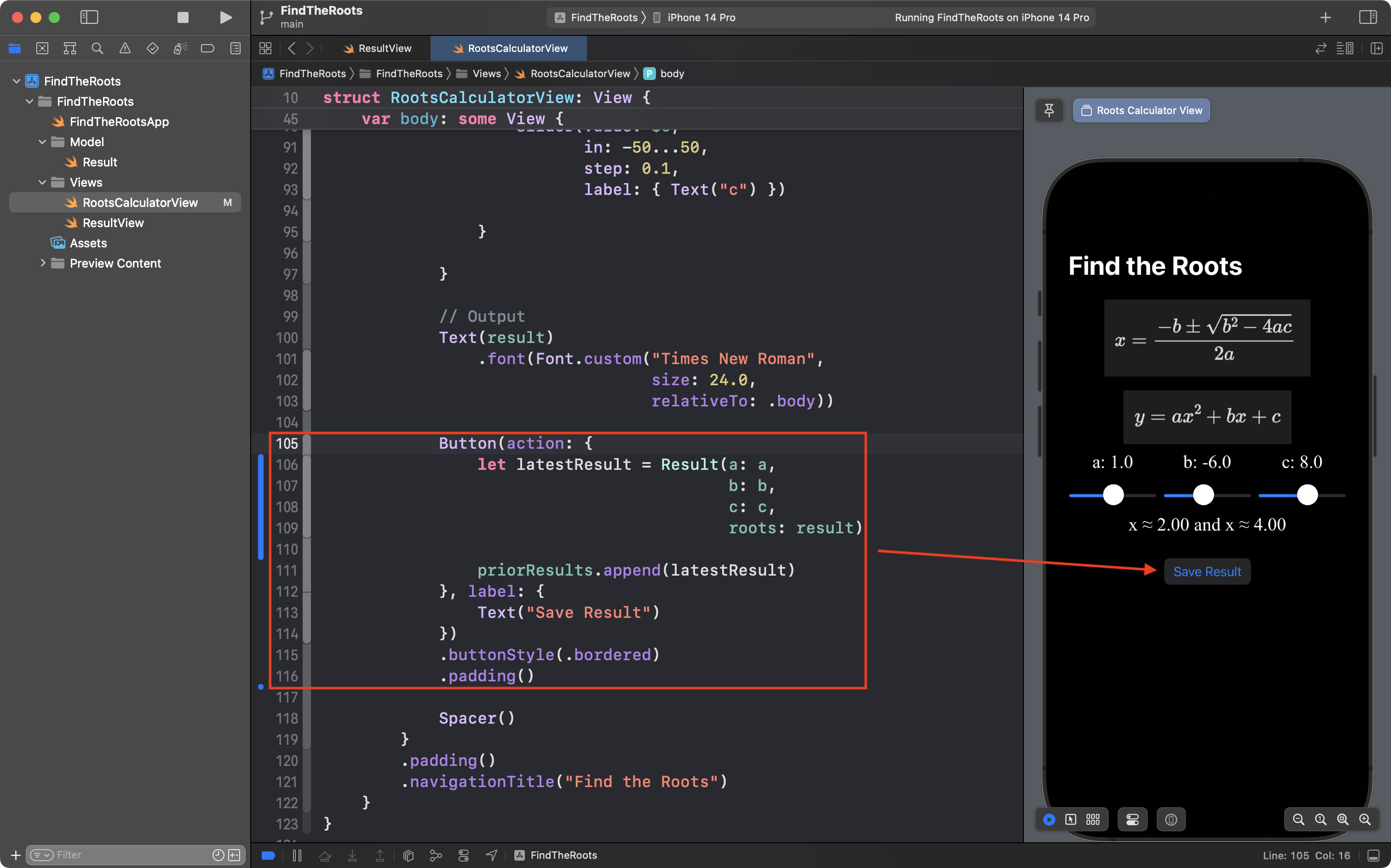
On lines 106 to 109, a temporary instance of the most recent result is created and saved in a constant named latestResult.
On line 111, the latest result is appended, or added, to the end of the array.
On line 113, the Text view specifies what text should show up on the button.
Show the history of results
Finally, we need a way to show the history of the results.
This will be done in very much the same way that you built a navigation list for your Trading Cards app:
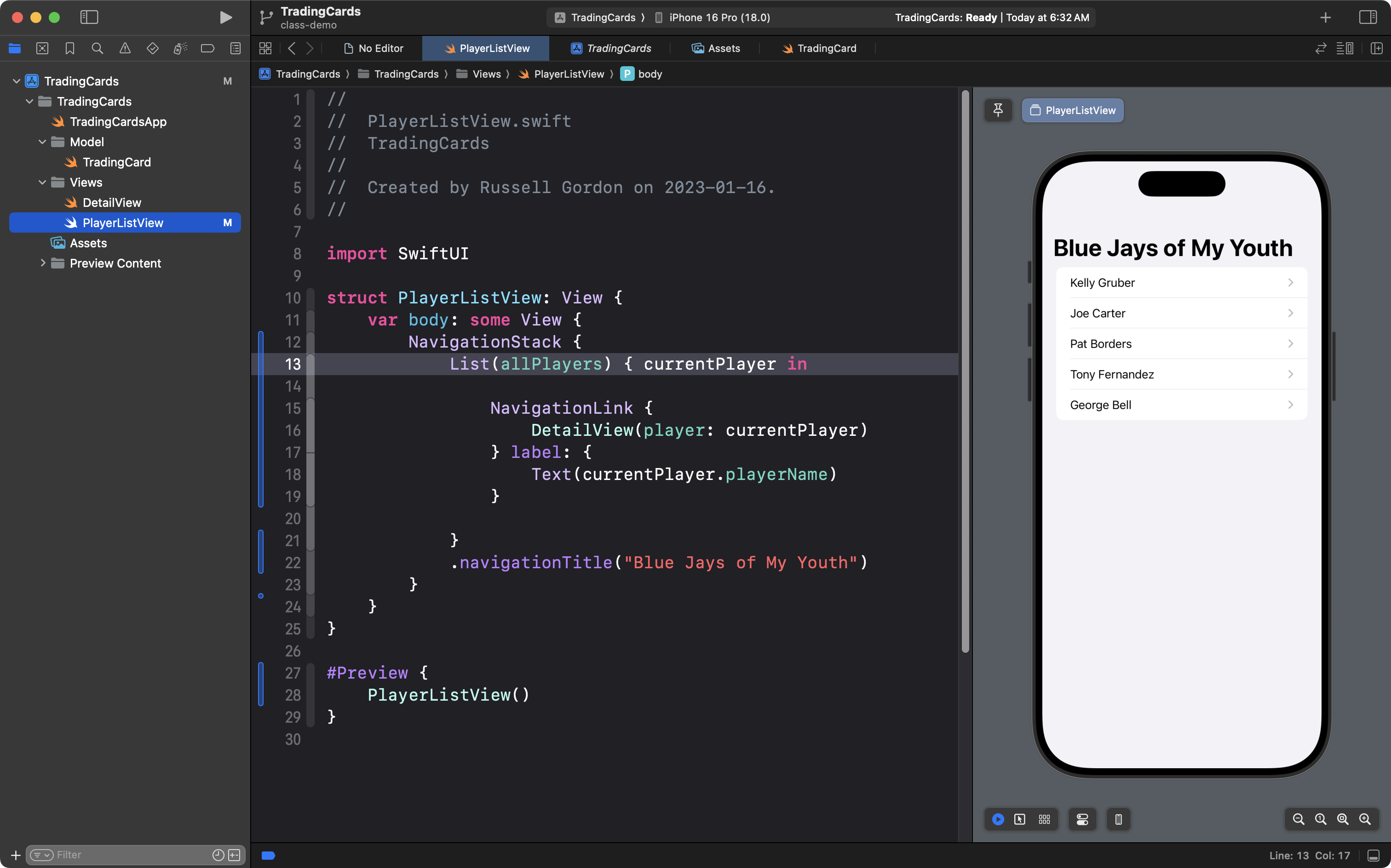
That is to say, we will use a List structure that iterates over an array to show the output.
Add the code shown, below your button:
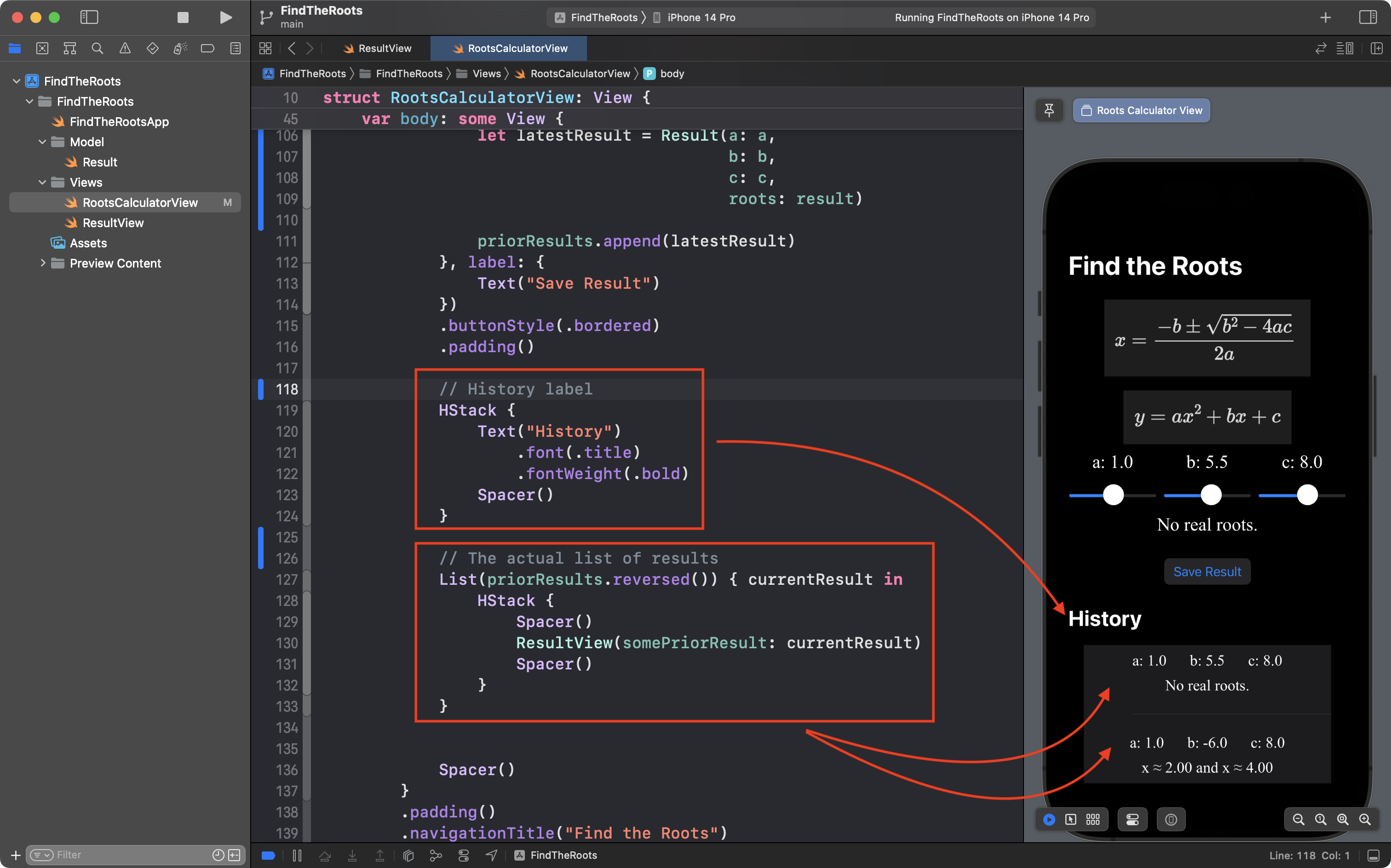
On lines 119 to 124, a label is created to display History in the user interface.
On lines 127 to 133, a List structure is used to iterate over all the results saved by the user. This creates the output seen below the History label.
The contents of the array are shown in reverse order:
priorResults.reversed()… so that the most recent result that is saved is shown at the top of the list.
And now, you are done building this app! 🎉
Reflection questions
When you write a portfolio entry for this lesson, please try responding to the questions below.
NOTE
Since thinking about what you learned today, and making the effort to articulate your ideas in writing is the point of responding to these questions, please do not use a large language model such as ChatGPT to come up with responses.
By thinking about your responses to these questions on your own, you will better prepare yourself for upcoming conversation-based evaluations in this module of the course. As a group, we will soon speak at greater length together about what these conversation-based evaluations are. Note that every student in the class will complete a conversation-based evaluation at least once before the end of this module.
- Why is the
@Stateproperty wrapper necessary for thepriorResultsarray? - How does creating a helper view like
ResultViewmake your app easier to build and maintain? - How does the button in
RootsCalculatorViewenable the user to save results? What happens in the app when the button is pressed? - How does reversing the array before displaying the history of previous calculations improve the user experience?
- Why is it important to organize files and rename structures meaningfully in a project?
HINT
Consider the context of showing your work to another student, or coming back to a project you created several weeks after you wrote the code.
- How does the computed property in
RootsCalculatorViewsimplify the logic for displaying the results of the quadratic equation?